
How to remove text from a video
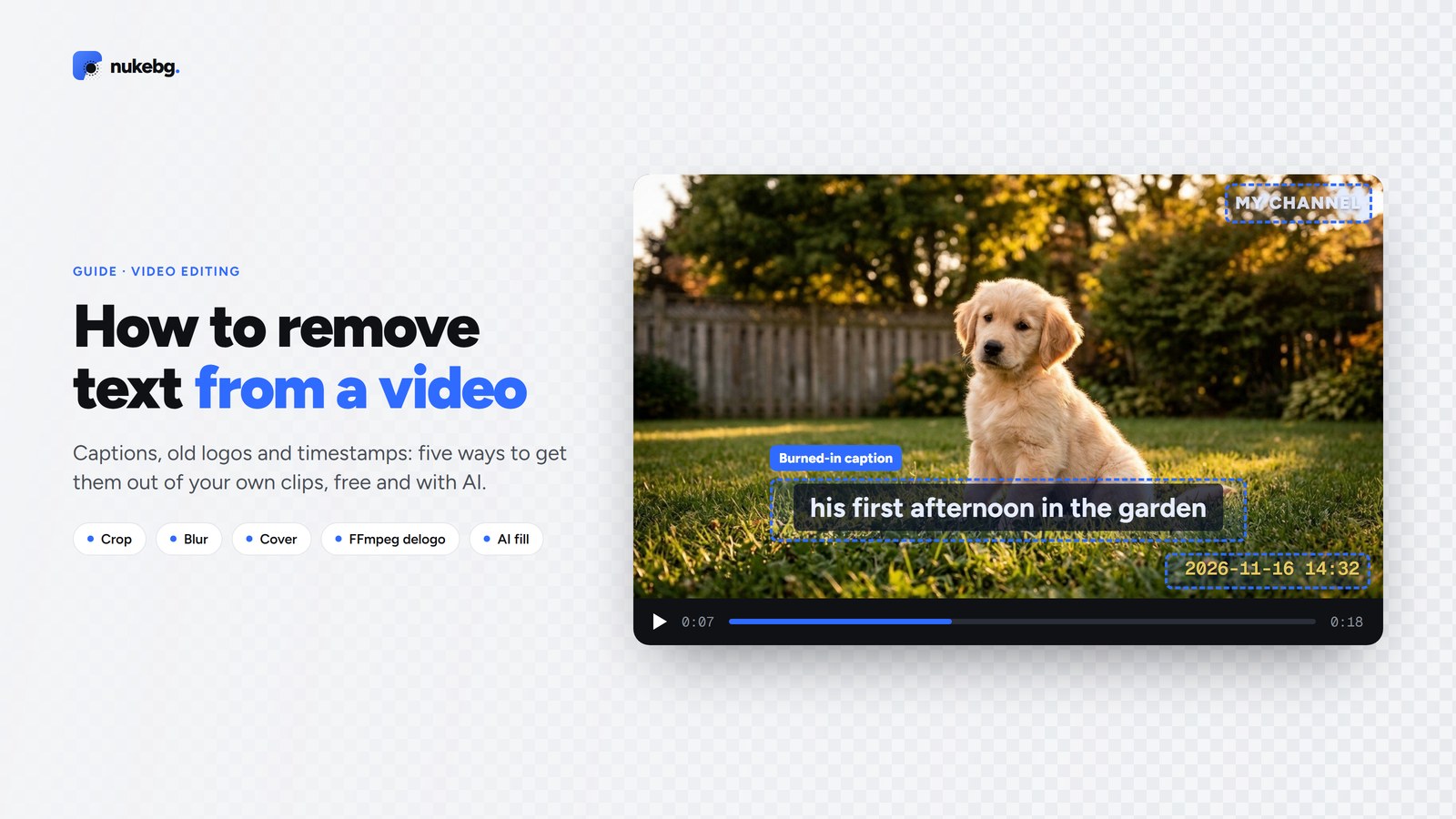
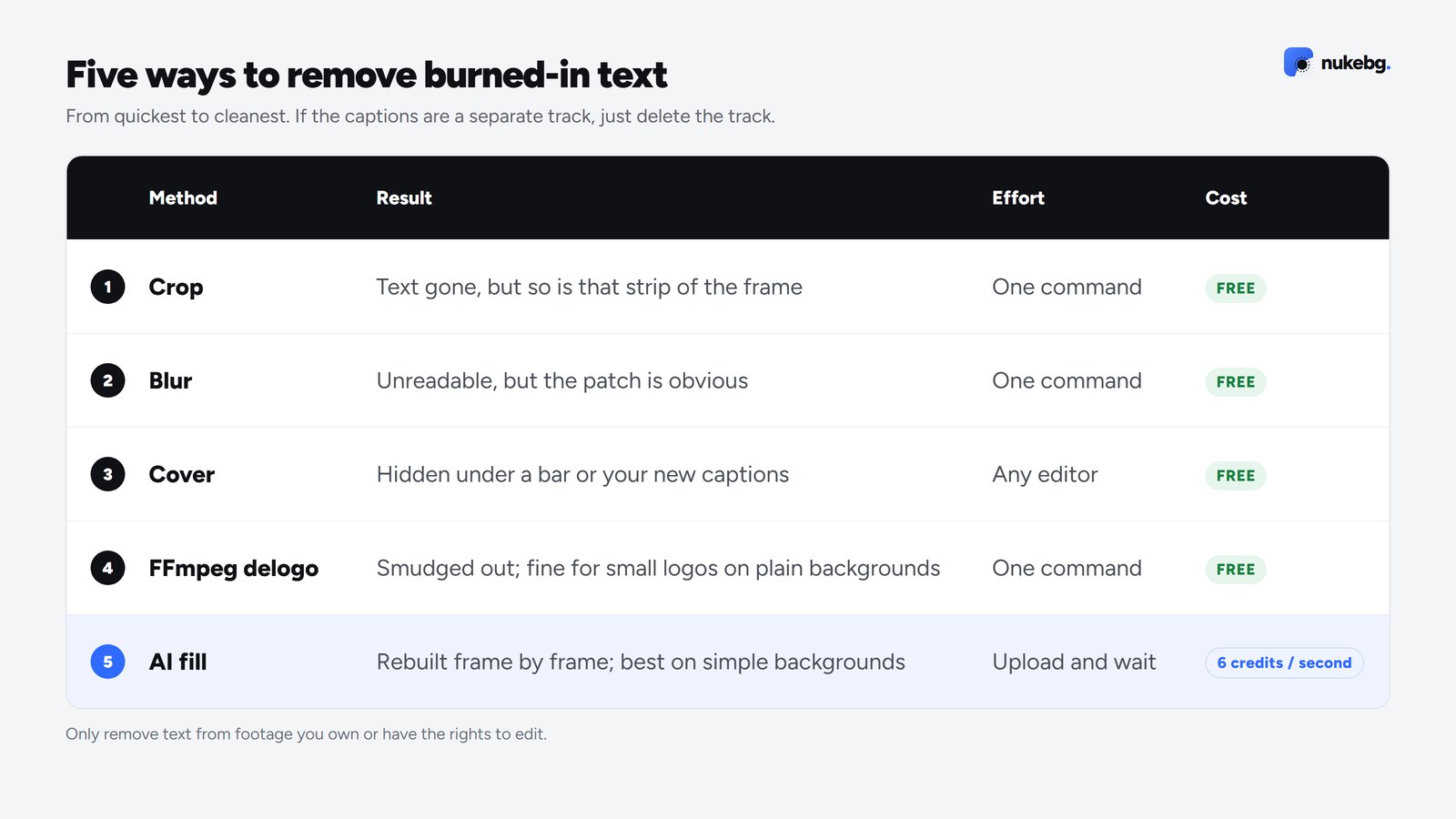
First check whether the text is a separate subtitle track: if it is, turn it off or delete the track and you're done. If the text is burned into the picture, you have five options: crop it out, blur it, cover it, smudge it out with FFmpeg's free delogo filter, or let AI rebuild the background behind it frame by frame. Cropping and covering are free and quick; AI fill is the only one that leaves no visible trace, and works best on simple or slow-moving backgrounds. Only do this to footage you own or have the rights to edit.
Updated
First: is the text burned in?
Soft subtitles are a separate track in the file (or a .srt or .vtt file next to it), so players can switch them off. Burned-in, or hard-coded, text is part of the picture itself: the letters replaced the original pixels, so they have to be removed from every frame.
If your player can turn the captions off, they're soft. Delete the track in your editor, or copy the file without its subtitle streams using FFmpeg:
ffmpeg -i input.mkv -map 0 -map -0:s -c copy output.mkv1. Crop it out
If the text sits along an edge, such as captions at the bottom or a date stamp in a corner, cropping removes it completely, for free, with no artefacts. The catch is that the frame changes shape and you lose whatever else was in that strip. It suits clips you're reframing anyway, for example cutting a 16:9 video to vertical for Reels or Shorts.
ffmpeg -i input.mp4 -vf "crop=iw:ih-120:0:0" -c:a copy output.mp42. Blur or pixelate it
Blurring the area keeps the frame size and makes the text unreadable. It's quick and free, but the blurred patch is obvious, so it works for hiding a phone number or a name, not for a clean result.
ffmpeg -i input.mp4 -filter_complex \
  "[0:v]crop=600:80:660:960,boxblur=10[b];[0:v][b]overlay=660:960" \
  -c:a copy output.mp4
3. Cover it
Put something over the text: a solid bar, a sticker, or your new captions in a bigger box. Every editor can do it, and it's the usual fix when you're re-captioning anyway. The original text is gone from view, but the cover is part of the look, so it has to fit the video.
ffmpeg -i input.mp4 \
  -vf "drawbox=x=660:y=960:w=600:h=80:color=black:t=fill" \
  -c:a copy output.mp4
4. FFmpeg's delogo filter
FFmpeg's delogo filter fills a rectangle by blending in the pixels around its edges. It's free and built for static logos and channel bugs. On a small logo over a plain background it can look fine; on wide captions or busy backgrounds it leaves a visible smudge, because it only looks at the border of the box, not at other frames.
ffmpeg -i input.mp4 -vf "delogo=x=660:y=960:w=600:h=80" -c:a copy output.mp45. AI fill, frame by frame
AI inpainting rebuilds what should be behind the text, using the surrounding pixels and nearby frames, so the cleaned area follows the motion of the shot. It's the only method here that aims to leave no trace. It works best when the text sits over simple or slow-moving backgrounds; over fast, detailed motion the filled area can look slightly soft.
In NukeBG, upload a clip you own (MP4, MOV or WebM, up to 60 seconds and 1080p) to the Studio's text and logo tool. Static captions, logos and timestamps are found automatically, or you drag a box over exactly what to clean. The audio is copied across unchanged. It costs 6 credits per second on paid credits, so a 20-second clip is 120 credits, and developers can run the same tool through the API's /v1/jobs endpoint.
Which one to use
- The captions are a separate track: delete the track. No re-encoding needed.
- The text is on an edge and you can lose that strip: crop.
- You just need it unreadable: blur.
- You're adding new captions anyway: cover the old ones with the new design.
- A small, static logo on a plain background: try FFmpeg's delogo first.
- You want it gone without a trace: AI fill.
Only on footage you own
Removing text from your own videos, such as old captions, branding you've changed or a date stamp from your camera, is everyday editing. Removing someone else's watermark, logo or credits to reuse their work is a different matter: it can break copyright law and platform rules. NukeBG asks you to confirm you own the video or have the rights to edit it before it processes a clip.
Clean your own clips with AI
Captions, old logos and timestamps found automatically. Audio kept.
Frequently asked questions
Yes. Cropping, blurring, covering and FFmpeg's delogo filter are all free, and the commands above work on Windows, macOS and Linux. They leave the frame cropped, a visible patch or a smudge. AI fill leaves the cleanest result but uses paid credits.